In this type of mapping we have 2 methods for media:
1. Using SKU as media name:
With this method, the sku of the product we want to update searches in the media of your wordpress E-shop for the image which has a title with the following format (ex. sku.png). And in that case update the product with the new image.
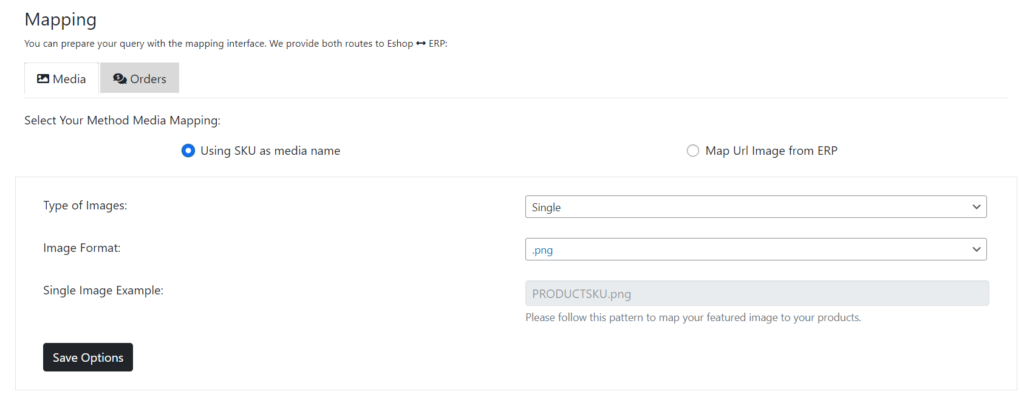
Description of the fields on this form:
Types of images: The user chooses whether he wants to add to each product several photos or one photo as a featured image.
Single option: the search starts and the first photo that finds the same sku will be put as a featured image while the rest are ignored.
Multiple option: the search will put the first image it finds as a featured image, but it does not ignore the rest but puts them in the product gallery.
Image Format: Here we limit what type of photographs the search will target.
2. Map URL image from ERP:
Here the fields are draggable like the previous modules.
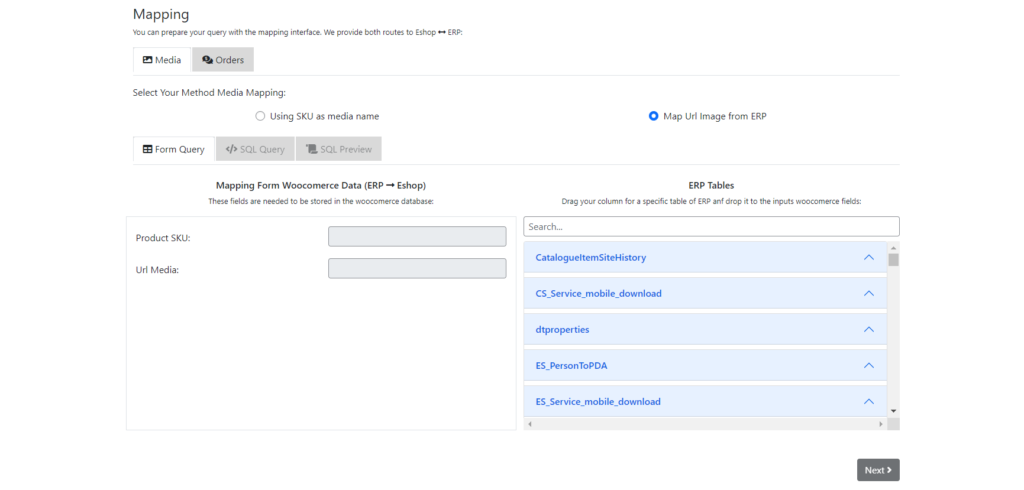
When all of the required fields are filled, the Next button will be activated and you can proceed to the next screen.
If the query contructed by your selection is the one you wished to create, simply press Next again to proceed to the test query area.
In the test query area, when you click the Show query button a test call in the ERP will take place and display the content returned by the query with real data. If the response is the one you want, please proceed to save the mapping for this module. If successful, a checkmark will appear and the system will redirect you back to the initial mapping screen.
Fields:
product_sku: As soon as the user locates from the erp table the field responsible for the product sku, he drops it in this field.
url_media: In the field of the table in the erp there will also be the url images in image1.png, image2.png format. This replaces the field.