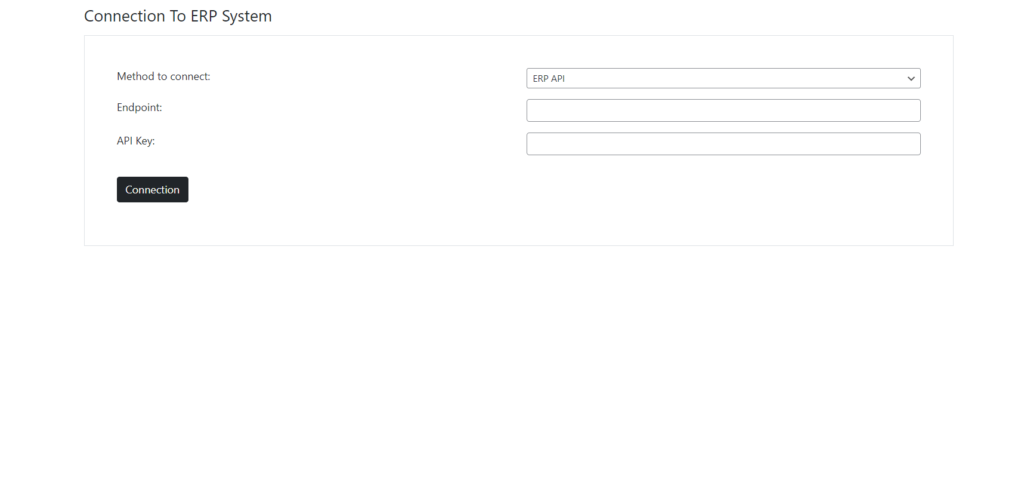
Our plugin provides two ways of interacting with the ERP system:
1. Database Connection #
Step 1: Go to wordpress Dashboard and navigate to ERP-Connector -> Connection and Select ERP DATABASE method to connect.
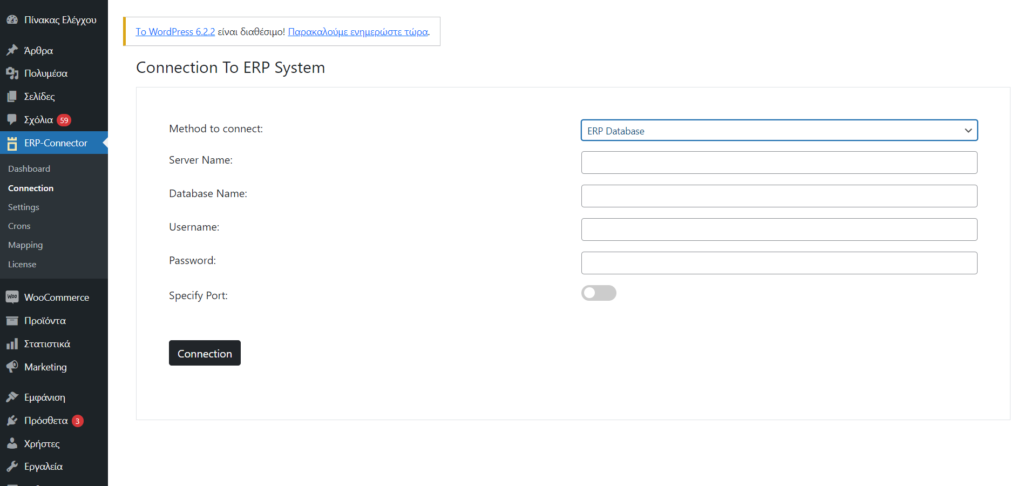
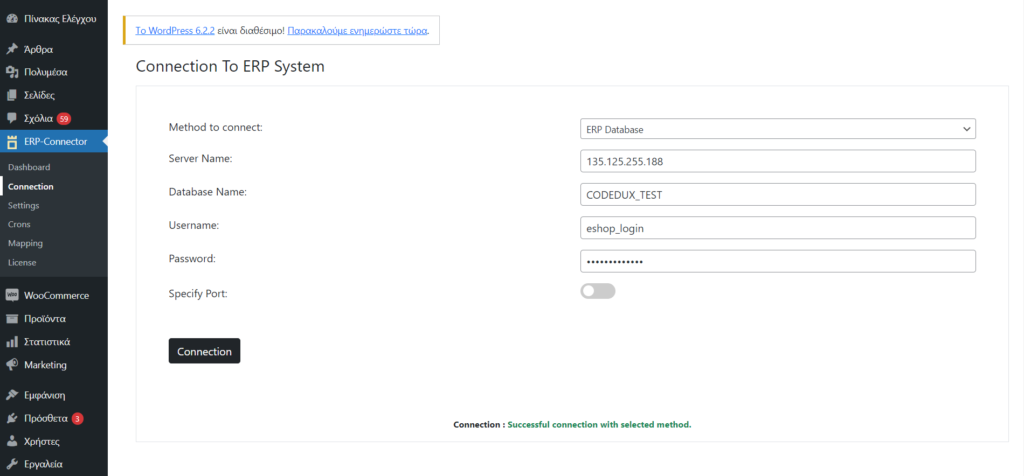
Step 2: Then fill in the missing fields with the credentials of your database and press the connection button. If you filled your fields correctly then you should see the result as in the image below:
Server Name: Fill in the IP address of the server that hosts your database.
Database Name: The name of the database you wish to connect to.
Username & Password: Your database credentials.
Specify Port: If you enable the switch, then you have to fill the port that your server is set up to server your SQL Server. If the switch is not enabled, then the default port is selected (1433).
2. API Connection #
Step 1: Go to wordpress Dashboard and navigate to ERP-Connector -> Connection and Select API CONNECTION method to connect.
Step 2: Then fill in the missing fields with the credentials for authenticating with the API and press the connection button. If you filled your fields correctly then you should see the result as in the image below:
Endpoint: Fill in the main structure of the APIs endpoints (ex. domain/api/v1/).
API Key: Fill the authentication token your API provider has given, to authenticate your requests.